Turning On Sound
LSM can alert you with a sound when a key moment happens — so you can look away from the screen and still catch a break. This page covers how to arm audio, where the mute control is, and how sounds behave. What each sound means is in Alerts & Signals.
The one-time browser step
Web browsers stay silent until you click the page once. That's a browser security rule, not a site setting. One click anywhere on the page at the start of your session is all it takes — after that, sounds play for the rest of the session.
If you hear nothing, this is almost always the reason.
Mute / unmute

The floating speaker icon on the page toggles audio on and off. The state is remembered on this device — if you muted last time, you'll start muted next time on the same computer or phone. It's a per-device cookie, not tied to your account.
Previewing the sounds
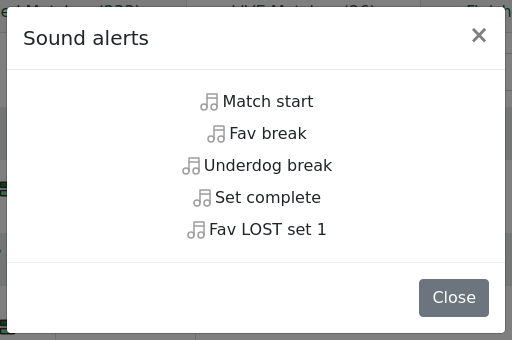
Open the Sound alerts preview modal (from the speaker area) to hear each cue before relying on it live. Five sounds are available:
| Sound | When it fires |
|---|---|
| Match start | A match enters play (set 1, no games played) |
| Fav break | The favourite breaks serve |
| Underdog break | The underdog breaks serve |
| Set complete | A set finishes |
| Fav LOST set 1 | The favourite lost set 1 |
Sounds fire on new events only. The same break won't play again every time the page updates.
Notes
Browsers block audio until you first click the page — one click unblocks it for the rest of the session. This is the browser, not the site.
Mute state is per device. Muting on your laptop doesn't mute your phone. (Your My Matches list is cross-device — don't confuse the two.)
Sound covers the whole live board — you hear alerts on matches you aren't actively looking at.
If the tab is in the background, the browser may delay or skip sounds to save power. For time-sensitive watching, keep the tab visible.
Tips & Tricks
- Click anywhere on the page once when you sit down to arm sound for the session.
- Use the preview modal to learn each cue before the action starts.
- Sounds cover the whole board — you don't need to be on a specific row or tab.
- Keep the tab in front if you need sounds immediately; background tabs can lag.
FAQ
Why am I not hearing any sounds? Most often you haven't clicked the page yet this session — browsers block audio until you interact once. Click anywhere, then check the speaker isn't muted.
Where's the mute / unmute control? The floating speaker icon on the page. Click to toggle; it shows the current state.
Does mute stay off after I close the tab? Yes — it's remembered on this device, so it carries over next time you open the page here.
How do I preview what each sound is like? Open the Sound alerts preview modal from the speaker area — it plays each of the five cues so you can learn them before they fire live.
Does the same break play a sound every update? No. A sound fires only when the event is new. The same break won't repeat each minute.
Does a sound play for matches I'm not looking at? Yes — sound covers the whole live board, so you get alerted even while scrolling elsewhere or looking at a different tab (browser permitting).
Can I choose which alerts make a sound? The set of five cues is fixed. You can mute everything or nothing; there's no per-alert toggle.
Why did I hear "Fav LOST set 1" instead of "Set complete"? When a set ends and the favourite has just lost the first set, that specific cue plays instead of the general set-complete one — it's the more relevant signal in that moment.
Do sounds work on mobile? Yes, after the same one-tap-to-unlock step. Mobile browsers are stricter about auto-play, so tap the page once and keep the tab in front.
Will sound work if the tab is in the background? Usually, but browsers slow down or pause background tabs to save power, so a cue can be delayed or skipped. Keep the tab visible when timing matters.
Does muting also hide the on-screen alerts? No. Mute only silences audio. The visual alerts still appear on the rows regardless.
Why did a sound play with no visible alert (match start / set complete)? Two cues — match start and set complete — are sound-only by design; they have no alert. Hearing one without a new alert appearing is expected.
Is my mute setting shared across devices? No. Mute is per device. Your My Matches list is the thing that's shared across devices — see My Matches.