My Matches
My Matches is your personal watchlist. Add the matches you want to follow, and they gather in one tab — with live scores, alerts and the Contextual Stats icon always available, even before a match starts.
Your list is saved to your account, so it's there tomorrow and on any device you log in from.
Adding and removing matches
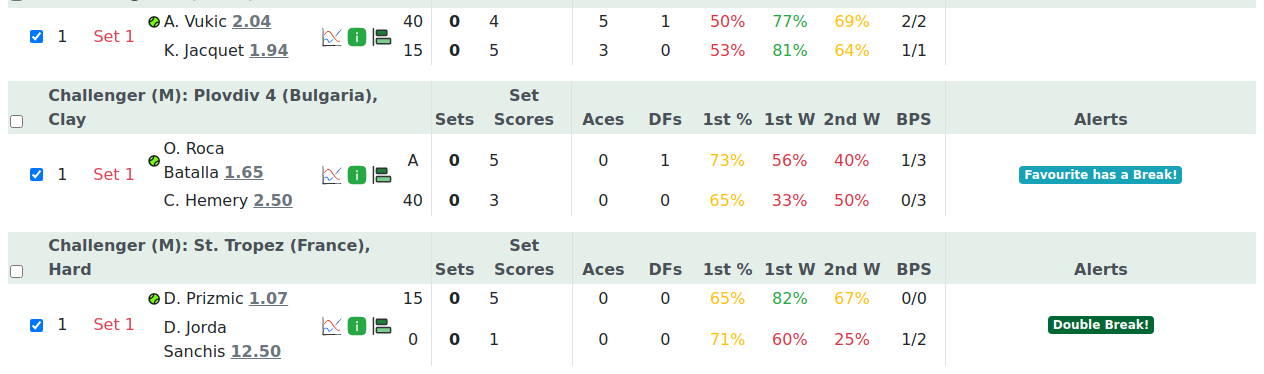
- On the Scheduled or LIVE tab, tick the checkbox on any row you want to watch.
- Press Submit selections.
That's it — the matches appear in your My Matches tab immediately. To remove one, untick it and submit again.
Nothing is saved until you press Submit selections. Ticking alone doesn't add the match.
Watching your list
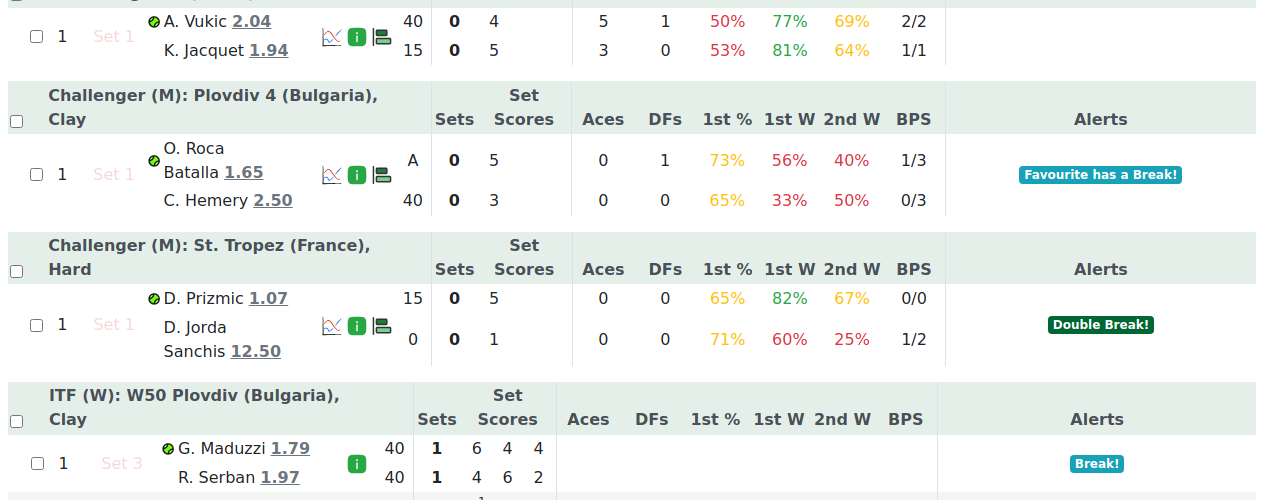
The My Matches tab behaves like the LIVE tab — same live scores, same alerts, same update cadence. Two differences:
- The Contextual Stats icon is always present on every row, even before a match has started. That lets you pre-read a player's situational history before the first point.
- It shows matches from all states (Scheduled, LIVE and Finished) so your whole watchlist is in one place.
Cross-device persistence
Your list is tied to your account. Log in from any device and you'll see the same My Matches. Matches naturally roll off after their day's board clears — there's no manual housekeeping needed.
Mute state is not cross-device — that's per device. Only My Matches follows your account. See Turning On Sound if you're confused about the two.
Notes
My Matches is saved to your account, not the browser or session. It's there tomorrow and on any device you log in from.
The Contextual Stats icon always shows here — pre-match included — so you can read situational context before the match starts.
A finished match stays on your watchlist for the rest of that day, then rolls off with the day's board. No action needed.
Tips & Tricks
- Build your shortlist on Scheduled in the morning, then watch only My Matches when play begins.
- Tick multiple rows, then Submit selections once to save them all together.
- Pre-read Contextual Stats on a scheduled match before it starts — the icon is always there on My Matches.
- Use category buttons and Player Search inside My Matches to narrow if the list gets long.
FAQ
How do I add or remove a match from My Matches? Tick (or untick) the row checkbox on Scheduled or LIVE, then press Submit selections. The change saves to your account immediately.
Will My Matches still be there tomorrow? Yes. It's saved to your account, so your list persists between days. Individual matches roll off naturally once their day's board clears.
Is My Matches shared across my devices? Yes — it's tied to your account, so the same list appears wherever you log in.
Can I add matches that haven't started yet? Yes — tick them on Scheduled and they wait on My Matches, ready when they go live.
Why does My Matches show the Contextual icon before the match starts? So, you can pre-read a player's situational history. My Matches always exposes the Contextual view; on other tabs it only appears once the live situation calls for it.
Does My Matches update live like the other tabs? Yes — same about-once-a-minute updates, same alerts and same sounds.
How many matches can I add? There's no limit you'll hit in normal use. Add as many as you'll realistically watch.
Does adding to My Matches change anything for other users? No. It's your personal list; no one else's board is affected.
What happens to a My Matches entry when the match finishes? It shows as finished and stays on your board for the rest of the day, then rolls off with the day's matches.
Do my category / search filters apply inside My Matches? Yes — the same view filters work here to narrow your list.
Why did my selections clear? Selections are saved to your account, so they shouldn't clear on their own. If your list looks empty, check you pressed Submit selections after ticking, and that you're logged into the correct account.
Do alerts and sounds work the same in My Matches? Yes — identical to the LIVE tab. My Matches is a saved, filtered view of the same live board.